


For high-ticket sales organizations, the integrity of the lead pipeline is non-negotiable. Manual data entry is slow, prone to error, and fundamentally unscalable. In the current competitive landscape, direct integration between your lead capture points and your CRM is mandatory for maintaining speed and high data quality.
This guide details the systematic process for integrating all primary lead forms—from paid social ads and landing pages to custom website embeds—directly into your HubSpot CRM. We focus specifically on configuration steps that ensure immediate lead routing, accurate segmentation, and strategic follow-up workflows for maximum conversion velocity.
Phase 1: Preparation and Prerequisites
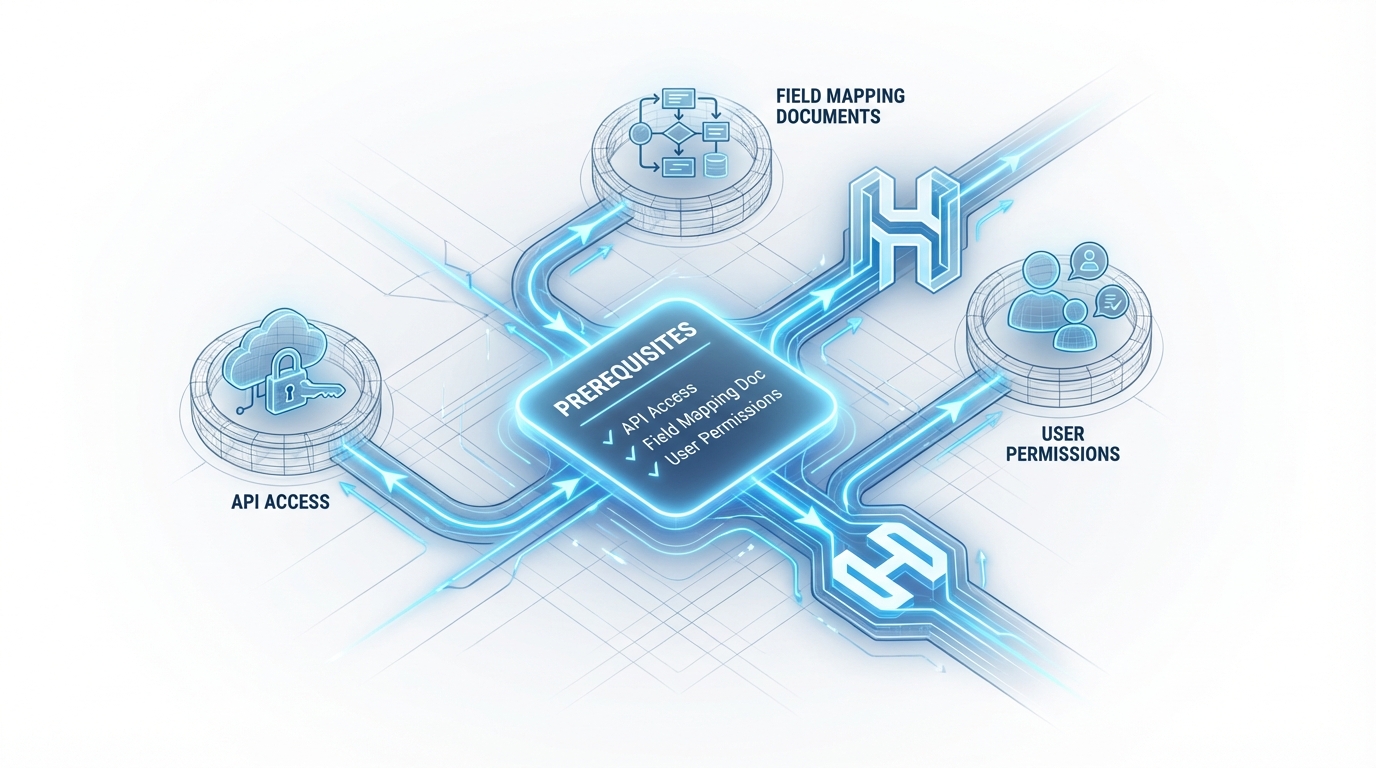
Before initiating any connection, you must confirm administrative access and rigorously define the data structure within HubSpot. Failing these steps results in data silos, synchronization errors, and ultimately, a breakdown of your sales qualification process.
1. Confirm Required Platform Permissions
Integration requires specific, elevated access levels across both your ad platforms and your HubSpot portal. Ensure the person executing the connection possesses the necessary roles outlined below before proceeding.
- HubSpot: Requires Super Admin access or permissions explicitly including the ability to connect ad accounts, manage form submissions, and create custom properties.
- Meta (Facebook/Instagram): Requires Ad Account Admin access, Page Admin access, and Business Manager Leads Access.
- LinkedIn: Requires Super Admin, Content Admin, or Lead Gen Forms Manager for the associated Business Page.
- Google Ads: Requires Admin access to the specific ad account you intend to link.
2. Defining Contact Properties and Data Schema
A high-ticket B2B sales process relies on capturing specific, standardized qualification data (e.g., Company Size, Industry, Annual Revenue). To ensure data integrity, the properties in HubSpot must exist and align precisely with the fields in your lead forms. This essential prerequisite prevents data loss and mapping failures during synchronization.
- Navigate to Settings > Properties in your HubSpot account.
- Create new custom contact properties for every qualification field your forms capture that is not a standard HubSpot field.
- Use clear, consistent, and standardized internal names (e.g.,
b2b_company_size) for easy identification during mapping. - Define the field type (Dropdown, Single-line text, Number) to match the data type expected from the form submission. A mismatch between the HubSpot property type and the incoming form data type will cause immediate sync failure.
Phase 2: Integrating Paid Ad Platform Lead Forms
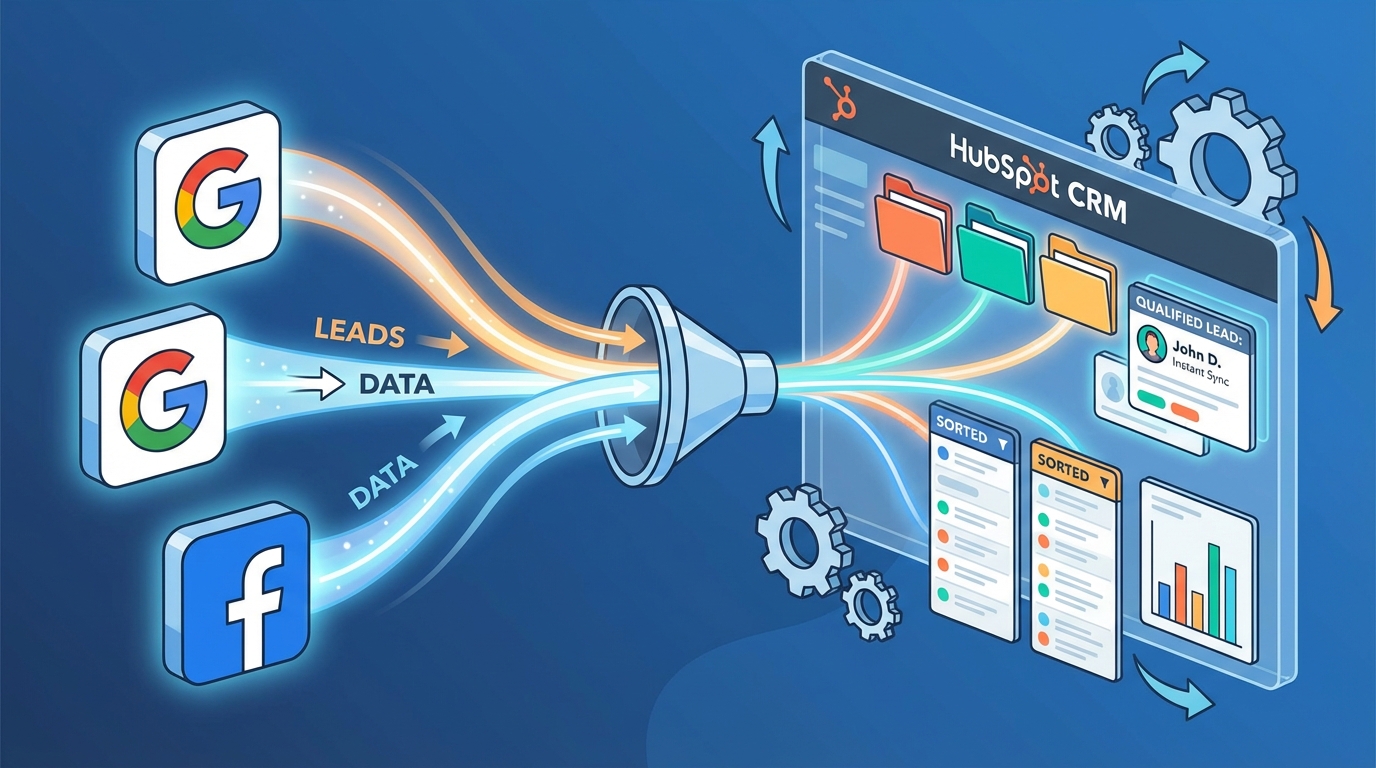
For high-volume, high-intent lead generation, paid platforms like Meta Lead Ads and LinkedIn Lead Gen Forms represent the most frequent point of integration. While HubSpot’s native Ads tool provides efficient synchronization, achieving high data integrity for B2B qualification requires meticulous configuration beyond the default setup.
3. Connecting Your Ad Account to HubSpot
The immediate prerequisite for lead flow is establishing the authenticated connection between the ad network and the HubSpot Ads tool. This step centralizes tracking, reporting, and enables the initial lead syncing mechanism.
- In HubSpot, navigate to Marketing > Ads.
- Click Connect accounts in the top right corner.
- Select the desired ad network (Meta, LinkedIn, or Google).
- Follow the external prompts to log in and authorize HubSpot access.
- Mandatory Configuration: Ensure you enable “Ad tracking” during the setup process. This step allows HubSpot to accurately attribute clicks and views to contacts, which is fundamental for Strategic GA4 ROI Tracking for High-Ticket Leads.
4. Configuring Lead Syncing Parameters
Connecting the ad account is not enough; you must explicitly define which specific pages, campaigns, or accounts HubSpot should actively monitor for new leads. Never assume automatic synchronization.
- In the HubSpot Ads tool, click the Lead syncing tab.
- Click Connect in the upper right corner if you have not configured the source yet.
- Select the specific Facebook Page, LinkedIn Ad Account, or Google Ad Campaign that contains your lead forms. Note: For Meta, you must select the Page, even if the Ad Account is already connected.
- Determine Sync Timeframe: For Meta and LinkedIn, you can choose to sync New Leads only, or New & Recent Leads (typically the last 90 days). For Google, synchronization only begins after you turn syncing on.
- B2B Recommendation: Toggle the Marketing Contact switch to ON. For high-ticket B2B sales, setting these synced leads as Marketing Contacts immediately facilitates rapid enrollment into automated nurturing and qualification campaigns.
- Click Save.
5. Mapping Custom Fields for B2B Qualification
This is arguably the most critical step for B2B data integrity. Standard fields (Name, Email) map automatically. However, custom fields—the ones that contain your essential qualification data—require precise manual mapping to the custom properties defined in Phase 1.
Crucial Technical Note: Custom form fields must be 255 characters or less in length to sync correctly into HubSpot. Exceeding this limit will cause synchronization failure for that specific data point.
- Navigate back to the Lead syncing tab in the Ads tool.
- Click on the specific Page name or Ad Account linked to the form.
- Under the Forms section, locate and click the specific lead form you need to map.
- Review the Field mappings table. Standard fields will show a green check mark.
- For any custom field showing an error or needing adjustment, hover over the field and click Edit mapping.
- Select the correct, pre-defined HubSpot property (e.g., map the form field “What is your company’s ARR?” to the HubSpot property
b2b_annual_revenue). - Click Save.
Key Highlight: Custom Mapping Strategy
We often observe conversion drop-off and mapping errors when organizations attempt to map complex, multi-select, or long-form fields from Meta Lead Ads directly into HubSpot. Keep the ad forms simple (Email, Phone, Company, 1–2 Qualification Questions). Use the immediate follow-up sequence detailed in Phase 4 to gather deeper, secondary data points.
6. Troubleshooting Sync Errors and Data Discrepancies
If leads are not successfully flowing into your CRM, immediate diagnosis is required to prevent critical pipeline loss. These are the most common failure points:
- Revoked Permissions/Access Tokens: The most common error. If the connection fails, re-authorize the ad account connection in the HubSpot Ads settings.
- Field Mapping Failure: If a lead syncs but is missing key qualification data, the custom field mapping is likely broken. Double-check for character length limits (255 max) or mismatched field types (e.g., mapping a text field to a HubSpot number field).
- API Lag Expectations: Leads from paid platforms can take up to two hours to successfully appear in HubSpot. This is a normal function of the API. If the lag consistently exceeds six hours, investigate the connection status immediately.
Phase 3: Integrating External Website Forms for High-Intent Capture

While paid ad platforms (Phase 2) generate necessary volume, the highest-intent B2B leads frequently originate from owned web properties—specifically, resource downloads, contact requests, and high-converting quizzes embedded directly on your site. Capturing this data reliably and immediately is crucial for sales velocity. We detail three methods, ranked by complexity and control.
7. Method A: Using the HubSpot Tracking Code (Non-HubSpot Forms)
HubSpot’s tracking code, once installed on your site, automatically identifies and captures submissions from most external, non-HubSpot forms (e.g., forms built via WordPress plugins, custom HTML forms). This is the simplest integration path if you are unwilling to replace your existing form infrastructure.
- Install the Tracking Code: Ensure the HubSpot tracking code snippet is placed immediately before the closing
</body>tag on every page where lead forms are located. - Enable Data Collection: In HubSpot, navigate to Settings > Marketing > Forms. Under the Non-HubSpot Forms tab, ensure the “Collect data from website forms” toggle is enabled.
- Test and Identify: Submit a test lead through your external form. HubSpot will automatically identify the form and list it under the Non-HubSpot Forms tab within minutes.
- Manual Field Mapping (Critical Step): Click the identified external form. Because HubSpot only captures the raw input field name (e.g.,
input_name_123), you must meticulously map this raw name to the precise internal name of the corresponding HubSpot Contact Property (e.g.,first_name,company_name). Data integrity hinges on the accuracy of this manual mapping.
8. Method B: Direct HubSpot Form Embeds
For new landing pages or high-conversion assets, using the native HubSpot form builder is the most robust method. It guarantees flawless field mapping, immediate synchronization, and superior tracking.
- Create the Form: Navigate to Marketing > Lead Capture > Forms in HubSpot.
- Build and Configure Properties: Build the form using the desired Contact Properties. Following B2B best practice, prioritize qualification data over lead quantity. (For guidance, review our resource on Optimizing Lead Capture Forms for High-Ticket B2B Conversion).
- Set Follow-Up Actions: Configure the “What happens next?” settings (e.g., displaying a concise thank you message or redirecting to a specific resource download page).
- Embed the Form: Click Embed. Copy the provided standard embed code and paste it directly into your website’s CMS or landing page builder.
9. Method C: API and Webhook Integration for Custom Systems
If you utilize highly customized lead capture systems, interactive quizzes, or third-party platforms (like specific AI form builders) that do not support native HubSpot embeds, direct API or webhook integration is necessary. This requires developer input but provides the highest level of control over the data payload.
- Generate Private App Key/Access Token: Access your HubSpot settings to generate the necessary API Access Token (Private App Key), which is the mandatory security standard for custom integrations in 2025.
- Configure the External Platform: In your external system (e.g., the quiz builder or custom backend), configure the webhook to fire upon successful form submission.
- Define the Endpoint: The webhook must target the appropriate HubSpot API endpoint, typically the
/crm/v3/objects/contactsendpoint for creating a new contact record. - Structure the JSON Payload: The external system must send a JSON payload that precisely maps the captured data points to the internal names of your HubSpot Contact Properties. Mismatched key names will result in contacts being created with missing or null critical qualification data.
Phase 4: Strategic Application and Routing
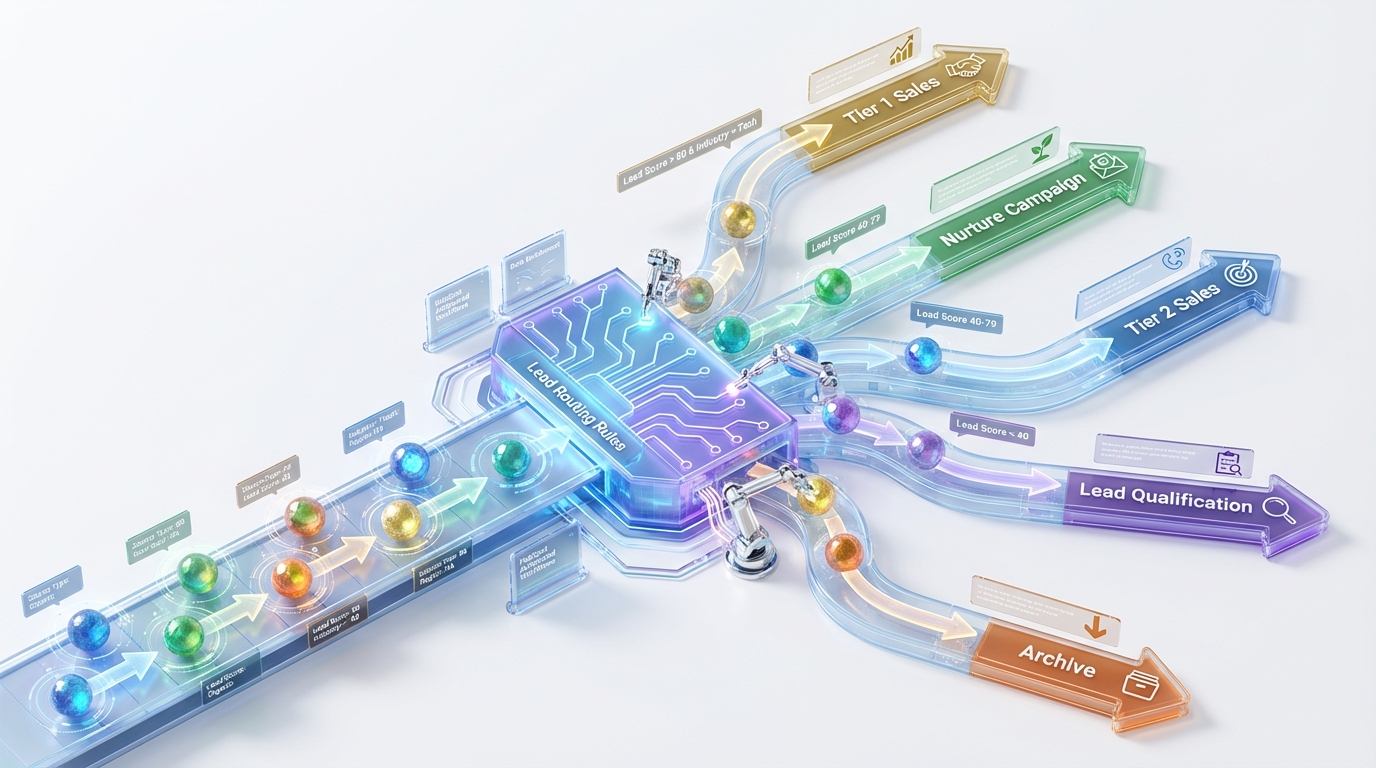
Integration is only half the battle. The true return on investment (ROI) is realized through immediate, strategic action. Once lead data flows reliably into HubSpot, the system must be leveraged to segment leads instantly, score them accurately, and automate the sales follow-up process to maximize conversion speed.
10. Implementing Lead Segmentation and Scoring
Every lead that enters HubSpot must be immediately qualified and prioritized. Use the custom properties captured in Phases 2 and 3 (such as Company Size, Job Title, and specific resource downloaded) to trigger internal qualification automation.
HubSpot Workflow Automation Steps for Qualification:
- Trigger: Form submission on a high-intent page (e.g., “Request a Demo” or “Pricing Inquiry”).
- Branching Logic: Use the captured custom properties (e.g.,
Company Size > 50 employees,Industry = SaaS,Annual Revenue > $10M) to determine the qualification path. - Lead Score Adjustment: Automatically increase the HubSpot Lead Score for contacts who meet specific high-value B2B criteria.
- Routing Decision: Leads below a predetermined score are routed to nurturing tracks; high-score leads (Sales Qualified Leads) proceed directly to immediate sales action.
- Lifecycle Stage Update: Immediately update the contact’s Lifecycle Stage from “Subscriber” to “Lead” or “Marketing Qualified Lead” (MQL) upon hitting the defined score threshold.
11. Setting Up Internal Sales Notifications
Speed kills competition in high-ticket sales. The sales team must be alerted the moment a qualified lead enters the CRM and is assigned to them. We use HubSpot Workflows to ensure immediate internal routing and accountability.
Immediate Sales Routing Workflow Configuration:
- Enrollment Trigger: When Contact Property
Lifecycle Stageis set to MQL or SQL, or when the Lead Score exceeds the sales threshold. - Action 1: Automatically assign the contact owner based on predefined routing rules (e.g., Round Robin assignment, or territory segmentation).
- Action 2: Send internal email notification or Slack alert to the newly assigned Sales Representative, including key captured data points (e.g., Company, Form Submitted, Score).
- Action 3: Create a high-priority Task in the sales representative’s HubSpot Task queue: “Follow up with new high-intent lead [Contact Name].” Set the due date for the same day (or within the hour).
12. Automating Post-Submission Follow-Up
While the sales team prepares for outreach, automated nurturing sequences must begin instantly. This ensures the lead remains engaged, provides essential fulfillment (like promised assets), and reinforces the trust established during the form submission process.
Use the specific form submission as the entry point for your automated drip campaigns. This ensures immediate delivery of the promised asset (if applicable) and the commencement of the strategic lead nurturing sequence. For a comprehensive strategy on designing these sequences, refer to The 2025 Mandatory Lead Nurturing Campaign Checklist.
Phase 5: Tracking and Optimization

Integration success is measured by the quality of attributable data it generates. Phase 5 focuses on leveraging this clean data to optimize the conversion path continually and justify the significant ROI of your lead generation channels.
13. Utilizing HubSpot Attribution Reports
Because you have correctly connected your ad accounts and meticulously mapped the fields, HubSpot can now provide comprehensive multi-touch attribution reports. These reports move beyond simple last-touch metrics, showing precisely which specific ad, form, and content piece influenced the final closed deal.
Actionable Reporting Focus:
- Time-to-Conversion: Analyze the time elapsed between the initial form submission and the final deal closure. Use this metric to refine sales routing speed and follow-up efficiency.
- Form Conversion Rate by Source: Identify which ad platform or website form yields the highest percentage of qualified leads (SQLs), allowing for strategic reallocation of ad spend.
- Revenue Attribution: Use the Revenue Attribution reports (available in compatible HubSpot tiers) to link specific lead forms directly to closed-won revenue, providing a clear, defensible ROAS (Return on Ad Spend) for your paid campaigns.
14. Mandatory Check: Data Hygiene and Compliance
Robust data hygiene is not optional—it is a legal and strategic necessity. Regularly auditing your integration status and lead quality is critical for long-term pipeline reliability.
Data Hygiene Checklist:
- ✅ Confirm all required API permissions are active and current (especially following platform updates, such as changes to the LinkedIn Lead Sync API).
- ✅ Regularly audit custom field mappings to ensure no critical qualification data is being lost or miscategorized during transfer.
- ✅ Utilize HubSpot’s data quality tools to identify and merge duplicate contacts that may be created by multiple form submissions or integration errors.
- ✅ Ensure all forms include mandatory consent checkboxes where required by regional data protection laws (e.g., GDPR, CCPA).
By treating form integration not merely as a technical chore, but as the foundational, measurable layer of your sales pipeline, you ensure every high-intent lead is handled with the speed, precision, and demonstrable ROI required for high-ticket conversion.
Frequently Asked Questions

As organizations scale their integration and focus shifts toward optimizing the conversion path, certain technical and strategic questions frequently arise regarding platform limitations and best practices.
Can I sync historical leads from Meta Lead Ads?
Yes. When configuring lead syncing for Meta (Facebook) or LinkedIn, you typically have the option to sync “New & Recent leads,” which retrieves submissions from the last 90 days. It is critical to note, however, that Google Ads integrations usually only sync leads generated after the connection is actively established.
What if my custom form fields are not mapping correctly?
Field mapping errors are common during initial setup. The three primary causes are:
- Character Limits: Fields must adhere to HubSpot’s standard limits (e.g., usually <255 characters for single-line text).
- Mismatched Field Types: Attempting to map a specialized field type (like a date picker or checkbox) to a standard text field.
- Incorrect Internal Naming: Inconsistent or mislabeled internal property names (API names) between the source platform and HubSpot.
Always check the Lead syncing tab in the HubSpot Ads tool for specific error details and edit the mapping directly to resolve conflicts.
Should I use HubSpot forms or external forms on my website?
We strongly recommend prioritizing native HubSpot forms for critical, high-intent lead capture points (e.g., Demo Request, Consultations). Native forms provide superior integration, reliability, and seamless tracking attribution.
While external forms are acceptable if required by complex legacy infrastructure, they introduce ongoing maintenance overhead due to the necessary setup and monitoring of the Non-HubSpot Form mapping feature.
Ready to take the next step?
Try AI Lead Generation Today
Click Here