
How To View Replies & Send Emails Using Unified Inbox
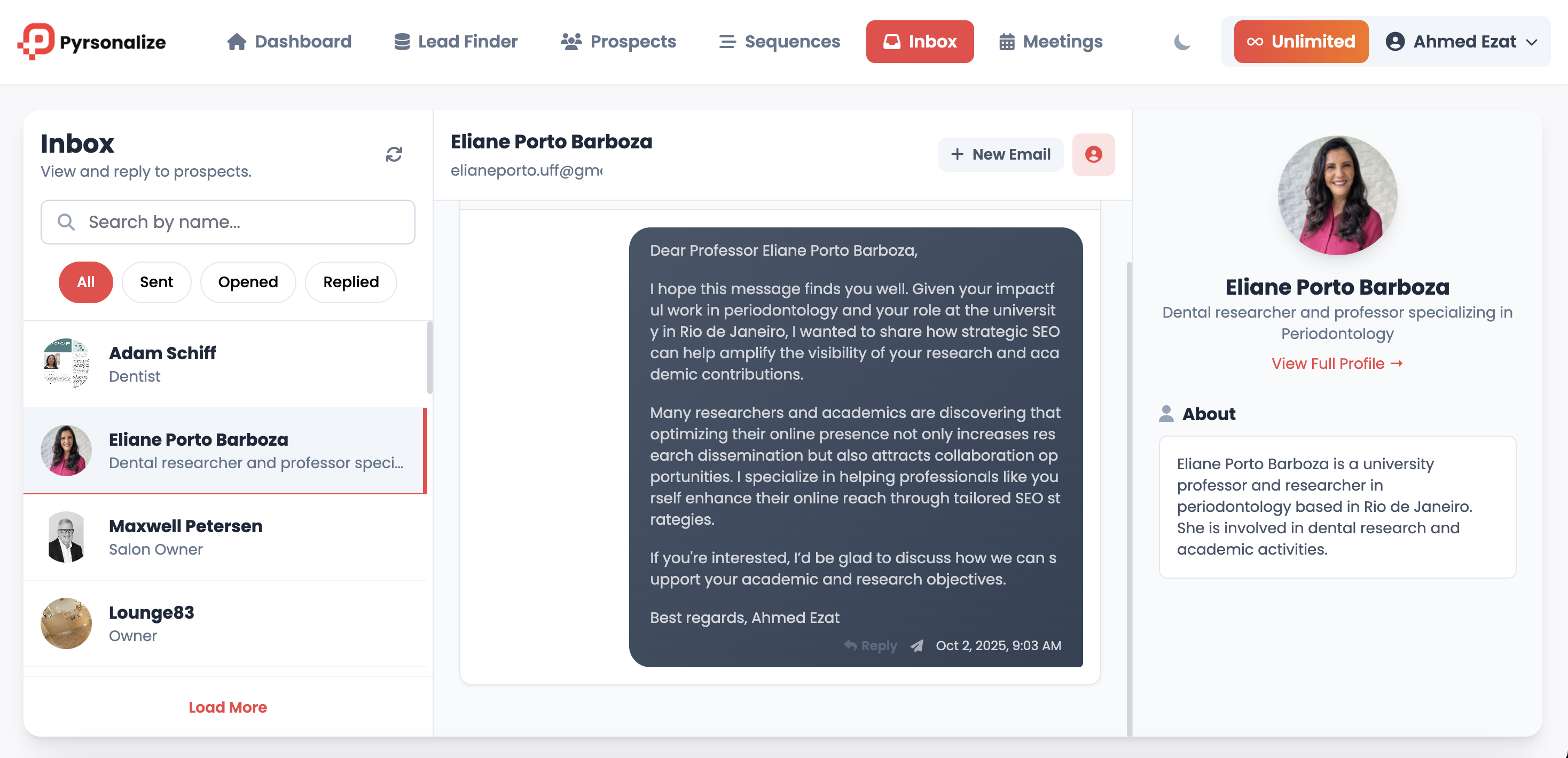
The Inbox brings all prospect conversations into one place. You can see which emails were sent, who opened them, who replied, and you can jump in with manual replies or start a brand new email.
Before you start
-
Make sure at least one sending account is connected. Gmail or SMTP are both supported.
-
Sequences with “Stop on reply” will pause automatically when a reply arrives.
The Inbox layout
-
Left sidebar: Prospect list with filters for All, Sent, Opened, Replied. Includes search by name.
-
Middle panel: The selected thread with subject and email body. Shows status, open indicator, reply icon, and time.
-
Right panel: Prospect profile card with photo, title, About, and a link to view full profile.
-
Top actions: New Email button to start a fresh message. Refresh icon to sync the latest opens and replies.
Step by step: Reply to a prospect
-
Open Inbox from the top navigation.
-
Use the left sidebar search or filters to find the prospect.
-
Click the prospect to load the thread in the middle panel.
-
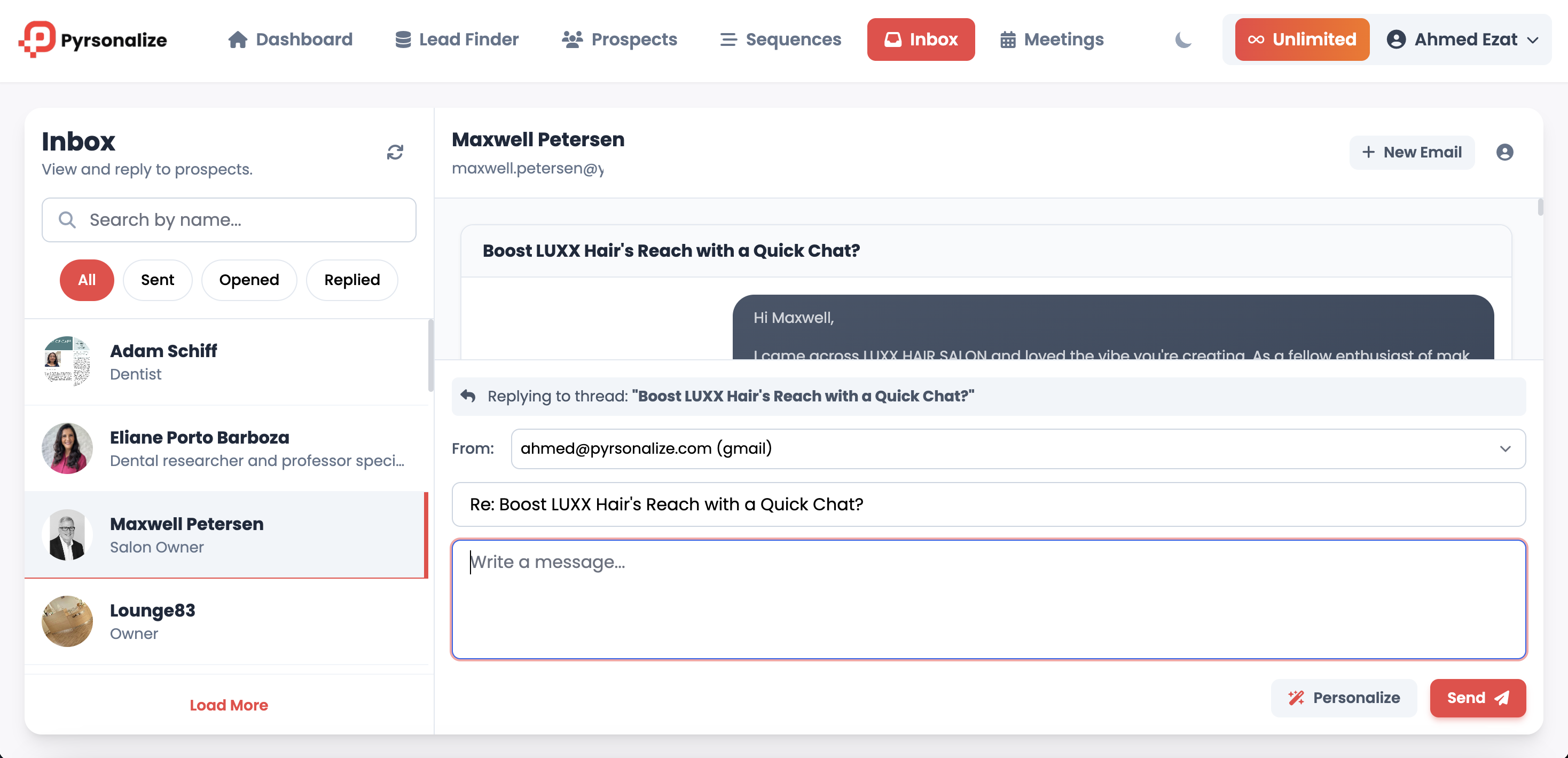
Click into the reply composer that appears under the last email.
-
Choose the From account if you have more than one connected.
-
Review the prefilled subject line that starts with “Re:”.
-
Write your message. Click Personalize if you want an AI-assisted suggestion.
-
Click Send. The thread will update and tracking continues.
Step by step: Send a brand new email
-
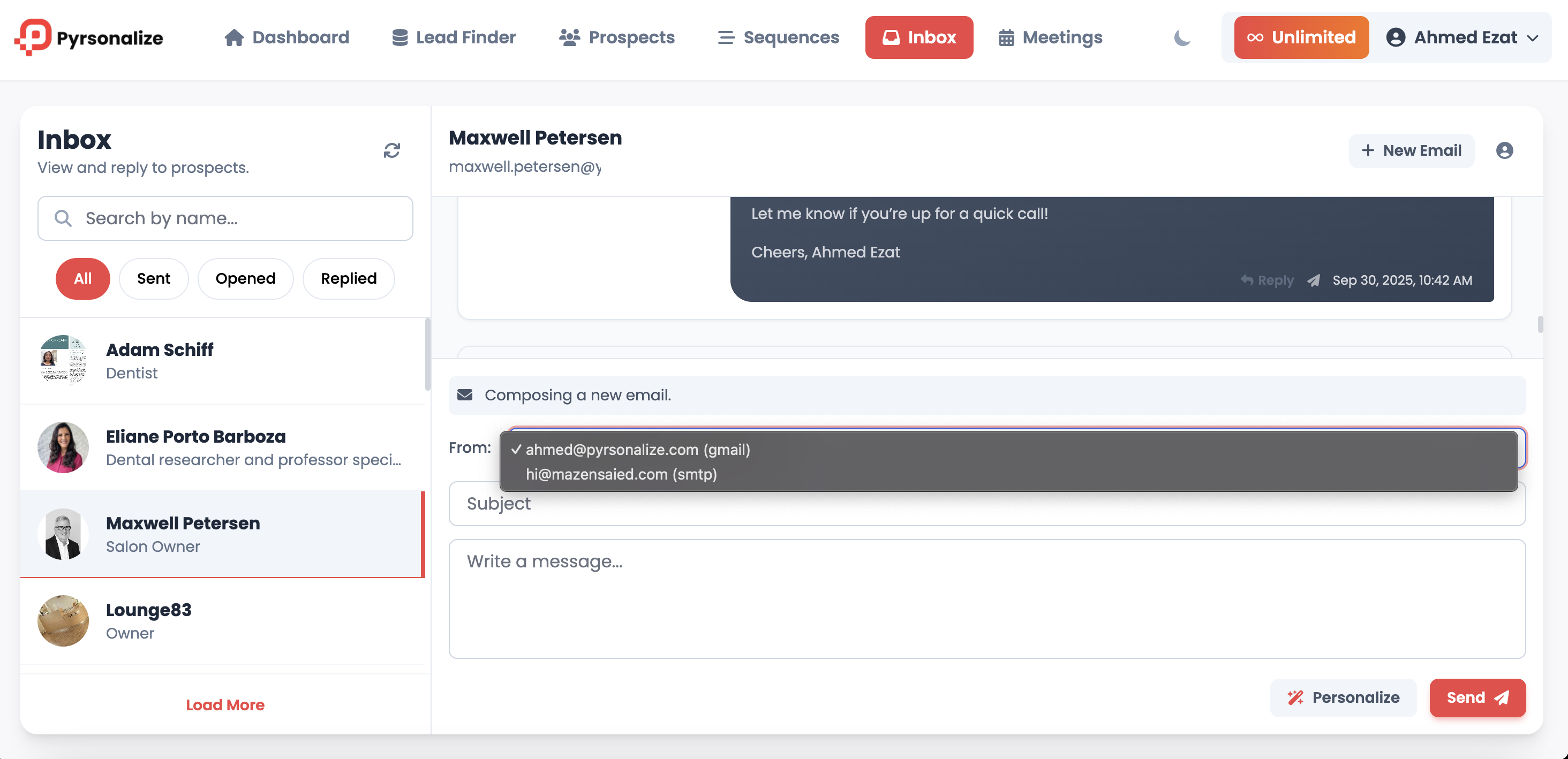
Click New Email at the top right of the thread.
-
Select the From account.
-
Add a subject and write your message.
-
Click Personalize for an AI-draft if needed.
-
Click Send.
Step by step: Track engagement
-
Use the filter chips to switch between All, Sent, Opened, and Replied.
-
Look for the open checkmark and reply icon on each message.
-
Click the Refresh icon to sync the latest activity.
-
A green toast confirms when sync finishes.
Tips for faster workflow
-
Use Opened to find warm leads who viewed your email but did not reply.
-
Use Replied to prioritize hot conversations first.
-
Switch the From account when you want to reply from a different mailbox or domain.
-
Click View Full Profile on the right panel to pull more context before you reply.
Troubleshooting
-
Nothing shows in the thread: clear filters or click Refresh.
-
Send button is disabled: add or select a From account in the composer.
-
Opens are not recording: check tracking settings in your sequence and resend from the allowed time window.
-
Replies are missing: click Refresh to force a resync. If still missing, verify your Gmail or SMTP connection in settings.
FAQs
Where do replies go
Replies sync back to the Inbox and appear in the same thread for that prospect.
Can I manage multiple email accounts
Yes. Choose the From account in the composer. Gmail and SMTP are supported.
Will a sequence stop when I reply manually
Yes if “Stop on reply” is enabled for that sequence.
Can I start a conversation without a sequence
Yes. Use New Email to send a one-off email from the Inbox.