
How To Add Mailboxes & Connect Brevo and Mailchimp
The Integrations feature allows you to connect your email accounts and marketing tools directly to Pyrsonalize, making it easier to send campaigns, manage deliverability, and sync prospects to your marketing lists.
✉️ Email Senders
1. Connecting Gmail Accounts
-
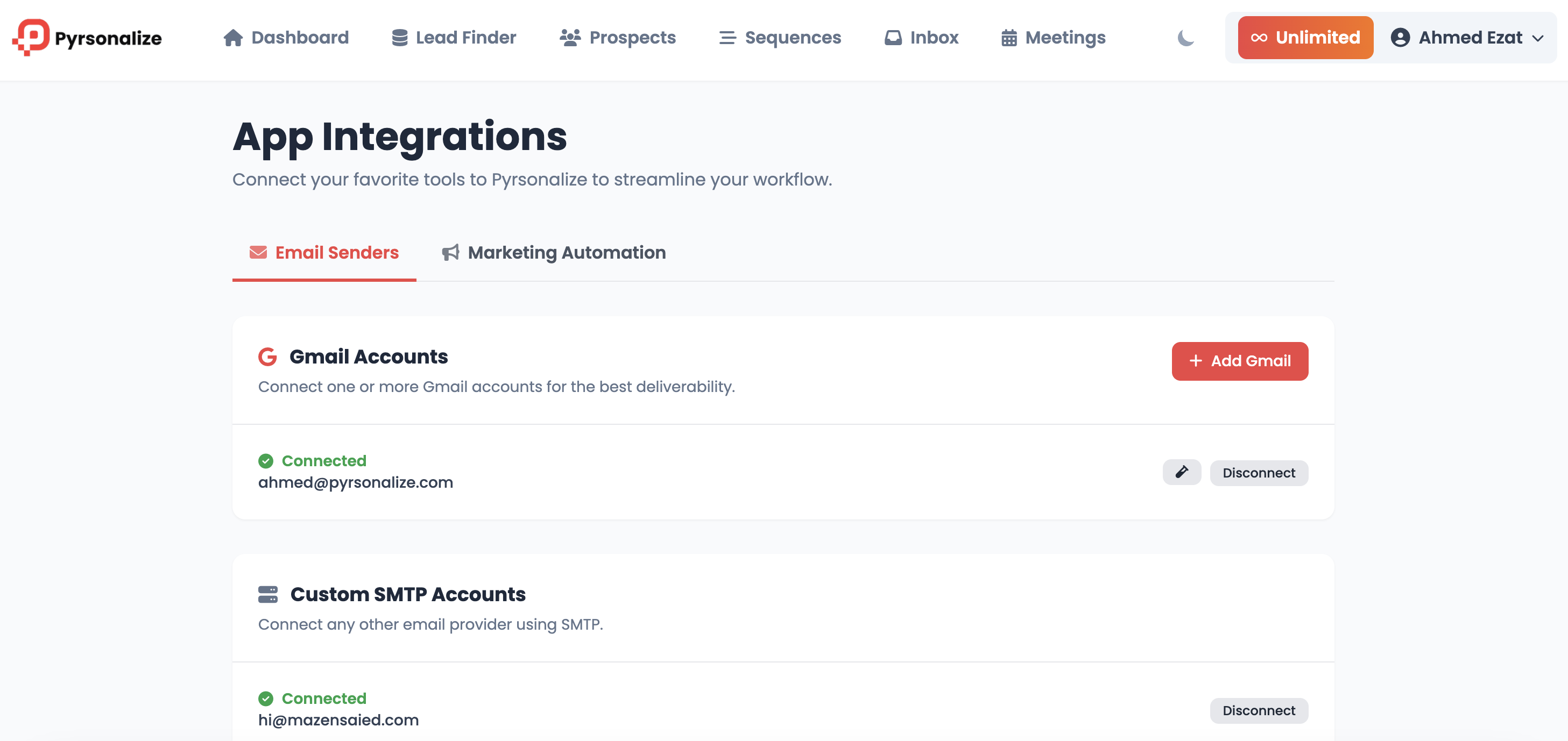
Click Add Gmail.
-
Sign in with your Gmail account and grant Pyrsonalize access.
-
Once connected, your account will display as Connected.
🔑 Tip: Connecting Gmail ensures the best email deliverability since emails are sent directly from your own account.
2. Connecting Custom SMTP Accounts
-
Select Custom SMTP Accounts.
-
Enter your SMTP credentials (host, port, username, password).
-
Once verified, your account will show as Connected.
🔑 Tip: Use SMTP if you’re sending from non-Gmail providers like Outlook, Zoho, or a business email.
3. Setting a Default Sender
-
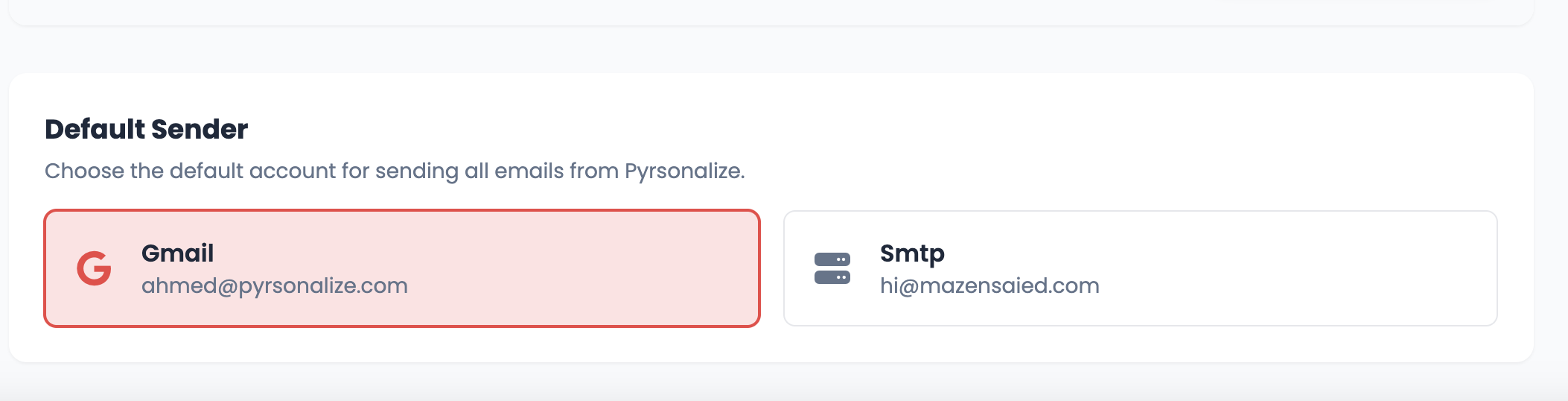
Scroll to Default Sender.
-
Choose the account you want Pyrsonalize to use by default (Gmail or SMTP).
-
This ensures all emails are sent from your preferred address automatically.
📢 Marketing Automation
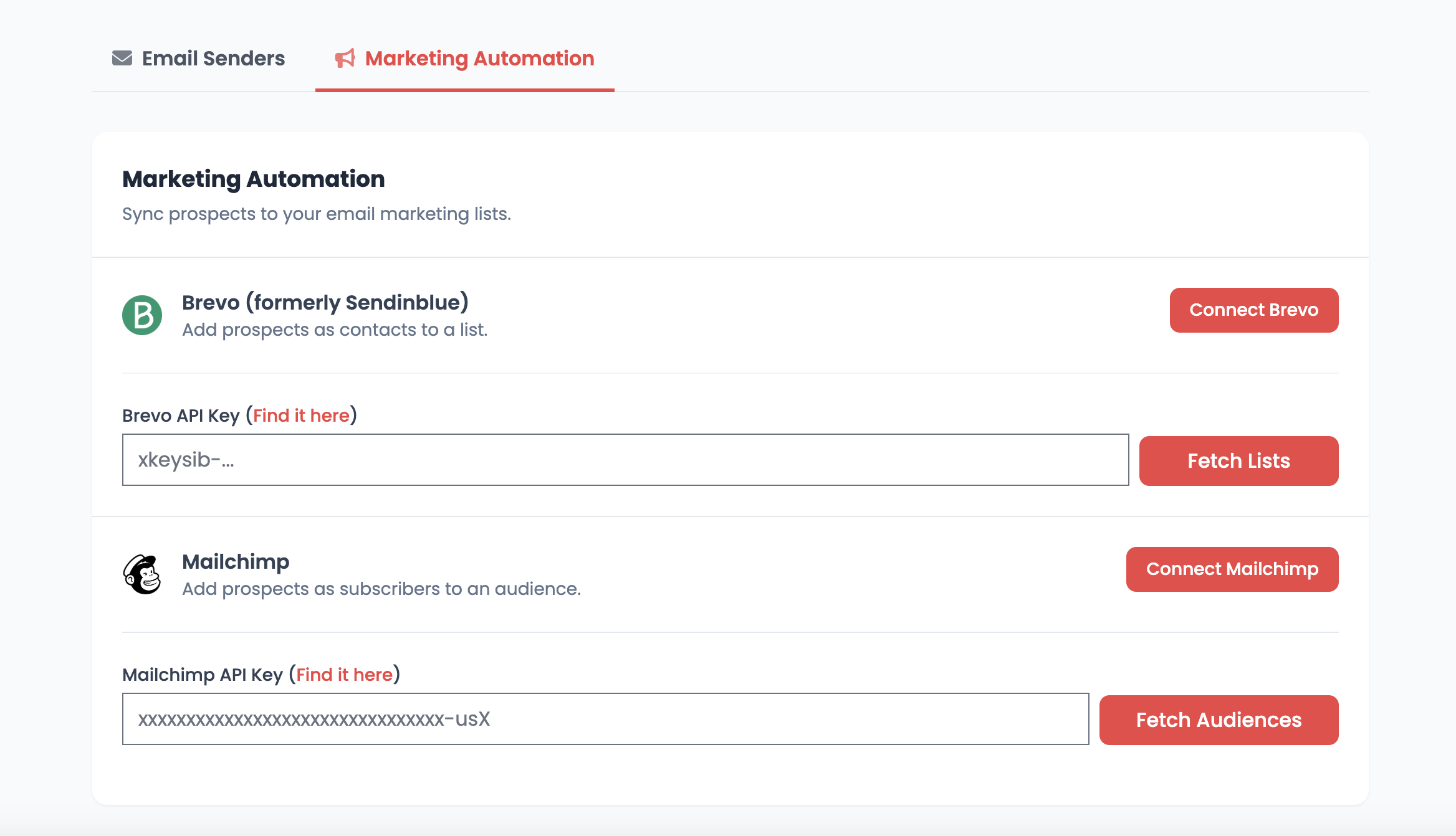
You can sync your prospects directly into your favorite marketing tools.
1. Brevo (formerly Sendinblue)
-
Enter your Brevo API Key (find it in your Brevo account).
-
Click Connect Brevo.
-
Once connected, hit Fetch Lists to sync your available contact lists.
2. Mailchimp
-
Enter your Mailchimp API Key (find it in your Mailchimp account).
-
Click Connect Mailchimp.
-
Once connected, hit Fetch Audiences to sync audiences for quick contact management.
✅ Summary
-
Email Senders: Connect Gmail or SMTP → set your default sender.
-
Marketing Automation: Connect Brevo or Mailchimp with an API key → fetch lists/audiences.
-
With these integrations, Pyrsonalize centralizes your outreach and marketing in one dashboard.